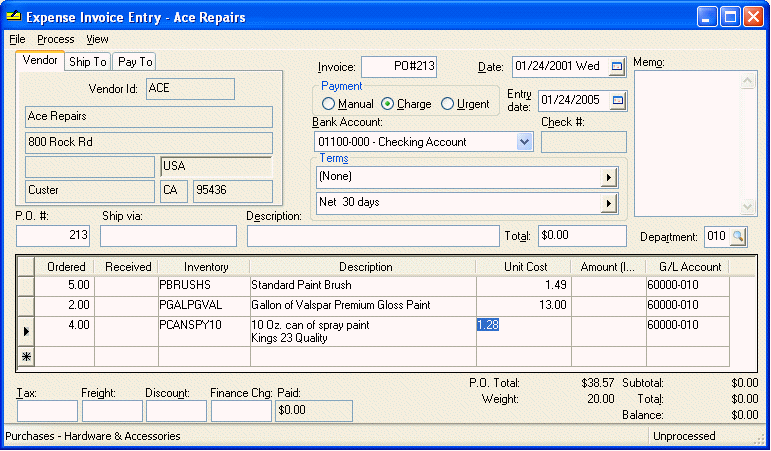
A sales order can be created directly from a purchase order when the two screens contain the same inventory items. This feature is useful when processing special orders for a customer that may or may not be shipped directly to the customer.
Go to Expenses > Invoices and POs to view the following screen:
1. Enter the customer’s shipping address in the Ship To tab of the PO by clicking on the Ship To tab and entering the customer’s id.
2. Enter the details of the PO in the usual manner as described in the Purchase Orders section of this manual.
3. Checking the Show Sales Prices option on the View menu of the Purchase Order will allow the user to enter the Unit Sale Price.
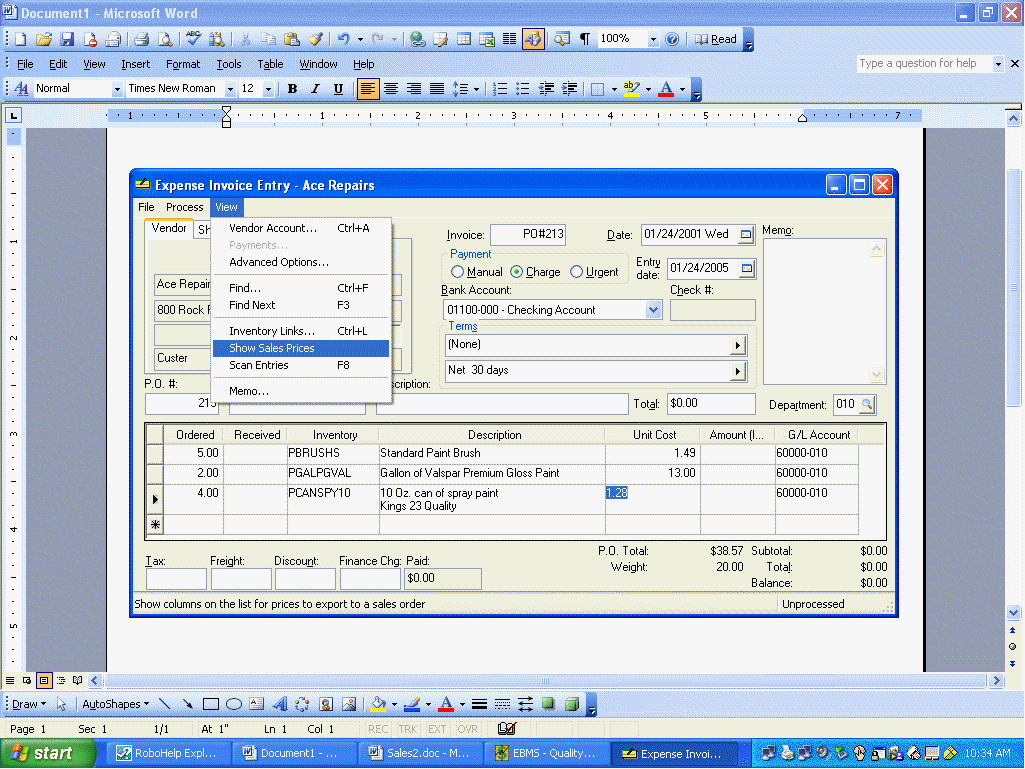
4. The Unit Sale Price can be entered for each line of the purchase order that will then be copied to the sales order.
5. Select the Create Sales Order… option from the Process menu of the purchase order and the following wizard will open:
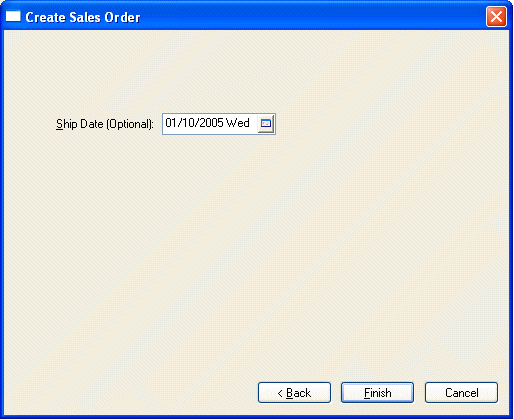
6. Enter the estimated ship date and click the Finish button. This date value will be copied to the Received Date of the purchase order’s detail lines and to the Ship Date on the sales order header.
The newly created sales order will open at the end of the wizard.
The sales invoice can be opened from the purchase order by opening the advanced options of the purchase order. Click the View > Advanced Options in an expense invoice as shown below:
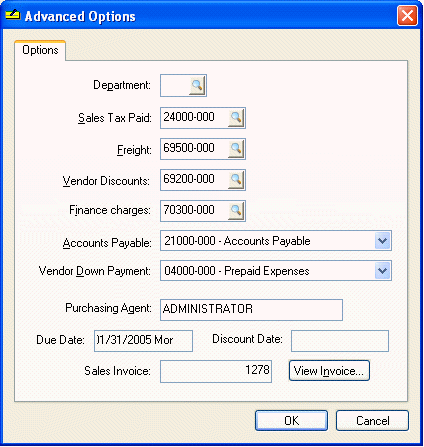
The Sales Invoice field will show at the bottom of the dialog. Note that this field will not show if no sales invoice has been created. Click on the View Invoice to open the sales order.