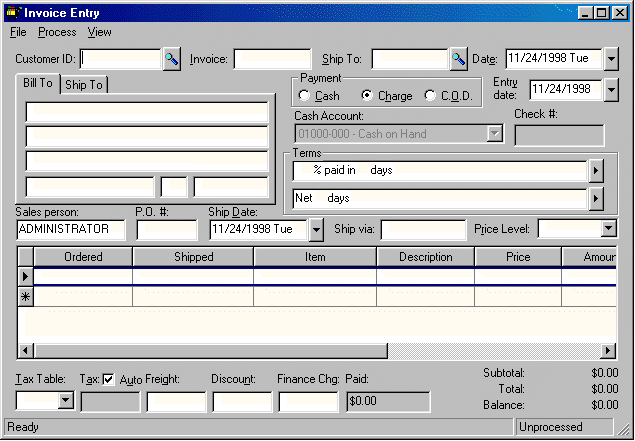
To process a customer credit, perform the following steps:
Applying a Credit to an Outstanding Invoice
Go to Sales > Customer Payments window to apply the credit to another invoice.
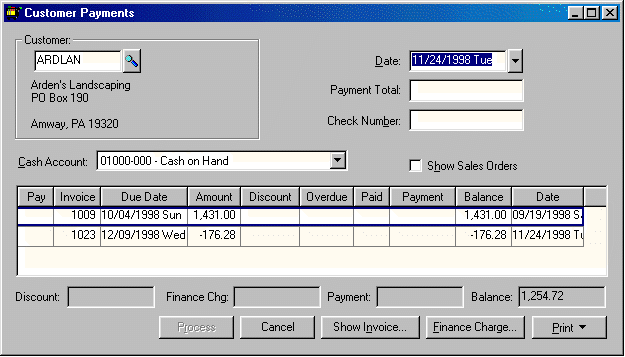
Enter the Customer Id and payment Date.
Leave the Payment Total blank or zero and type "APPLY CREDIT" in the Check Number field.
The Cash Account setting can be ignored since the payment amount is zero.
Select both the credit memo and each invoice that you wish to apply the credit toward. The Payment column on the credit memo line should equal the Balance negative amount. The other invoices should contain the positive total of the credit memo. This may be less than the balance amount of the invoice, which will then be processed as a partial payment. Click the Process button if the Payment column equals zero (Total invoice payments – Credit amount = Zero).
Reenter the Customer Id code and press TAB and notice that the credit has been removed, but all invoices that have a partial payment applied continue to be listed with a balance that reflects the partial payment.