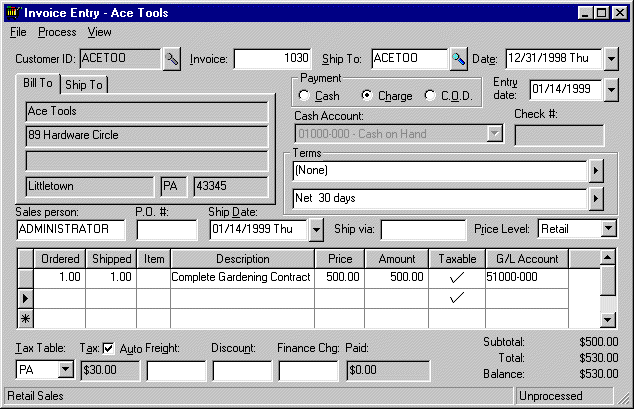
The Materials Lists feature is used to enter and process inventory items within a sales invoice without listing the inventory items on the printed invoice. Listed below are scenarios when this feature is useful.
Using the Materials List for Sales Contracts

Select Materials List from the menu and the following window will appear:
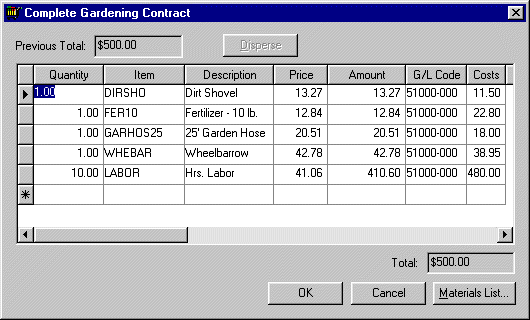
The Previous Total reflects the unit Price amount in the main invoice and will not change as the components are edited and changed.
Enter the Quantity and inventory Item code of each component item. Blank the inventory Item code to manually enter a description and price rather than using an inventory item. The only advantage of using non-inventory items within a materials list is to record details within an invoice since the descriptions will not print on the printed invoice and no history will be recorded within the inventory database.
Enter the sales G/L Account within the materials list to identify the correct revenue general ledger account. This field automatically defaults to the general ledger code that has been set for the specified inventory code (Inventory > Advanced tab). This code can be changed manually for this materials list line. The sales amount is processed for each material’s list line with its associated general ledger account rather than the total price and account used within the main invoice detail line. This feature allows the revenue for a total contract to be distributed to multiple revenue accounts within the general ledger to facilitate more flexible management reports.
The Cost amount will be calculated only when an inventory Item has been entered and the Inventory Method has been set to Perpetual. Go to Inventory > Options > General tab to set Inventory Method. If the Inventory Method is set to Periodic, it is recommended that the cost column be hidden. Right click on the Cost column heading and click on the Cost option to hide column. The profit of a detail line can be calculated by subtracting the cost amount from the extended price.
The Total sale amount is calculated as each item is entered into the materials list or as a price or quantity is changed. Notice that the Previous Total does not change as the materials list is edited but continues to reflect the Unit Price in the main invoice. Click on the Disperse button to change the materials list prices so that the Total equals the Previous Total amount. This function is useful in our sales contract example since we do not want to calculate the contract amount as we edit or add to the materials list, but rather prefer to set the materials list pricing to reflect the total sales contract amount
Click on the OK button to return to the main invoice.
Entering Inventory Components into the Materials List
The Materials List window is used to record and edit inventory components entered in the Inventory > Inventory Items > Components tab. Refer to the Inventory > Inventory Components section of this manual for a more thorough explanation of inventory components and how they are used. You must have an inventory item entered that contains components before continuing with this section.
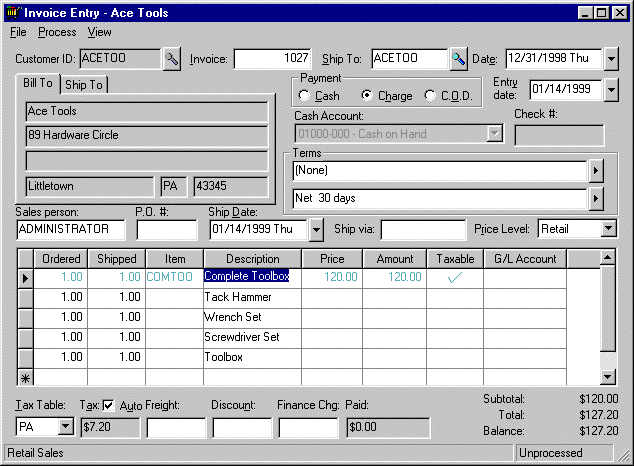
The component list on the main invoice of our example does not contain any inventory codes or prices since the Update Costs switch within the Components tab is OFF. The details on the main invoice are used only for description purposes and do not affect any inventory processing or postings. These descriptions may be changed or deleted with no adverse effect on the invoice or processes.
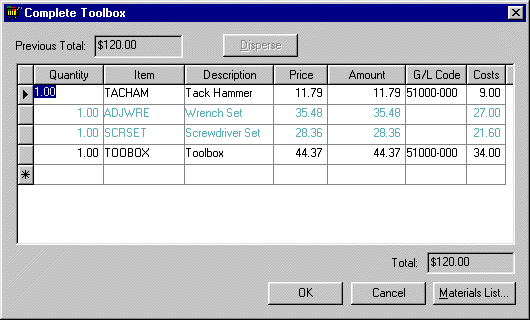
Notice that the components have already been inserted into the materials list as well as the prices and general ledger accounts. The descriptions match the inventory description listed in the main invoice but the inventory codes and prices are included. All inventory processing is driven from the components within the materials list since the descriptions in the main invoice are ignored.
NOTE: The description on the main invoice is NOT affected when an inventory item is changed within the materials list, so the main invoice description must be manually altered as well.
The Tool Kit example shown above contains a screwdriver set that consists of 3 different screwdrivers. Place the cursor on the screwdriver set line and click on the Materials List button. A sub Materials List window will open showing the three individual screwdrivers.
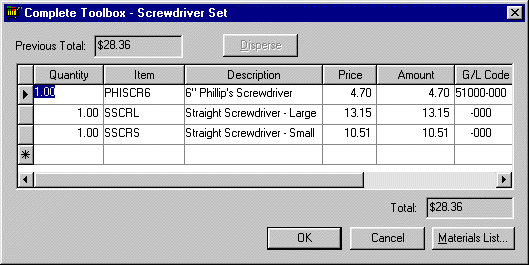
Materials can be nested within each other to create a multiple tier component list. Note that a sub-materials list cannot be connected to an inventory item that is classified as a Track Count item.
Click the OK button to return to the main invoice.
An inventory item with the Show on Invoice switch OFF will be processed the same way as the item with the switch ON. The only exception is that the component descriptions will not be listed or printed on the main invoice.
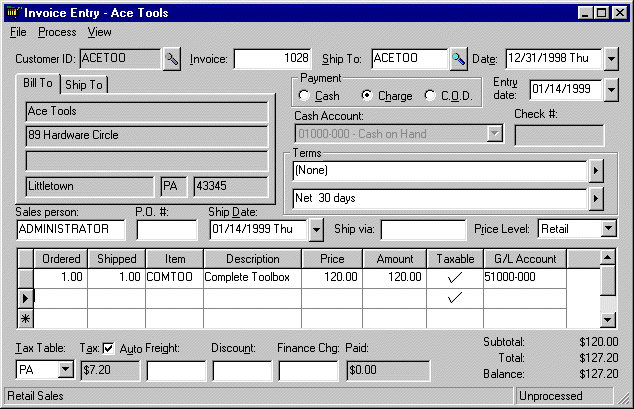
The Materials List can be viewed or changed the same way as in the example listed above.
An Inventory component set can be altered or changed within the invoice and materials list to meet the requirements of a specific customer. The component change within the invoice will not have an effect on the standard component list of the main inventory item. The Inventory Components feature can save the user a considerable amount of time when entering a standard set of items since a list of items can be entered using a single inventory code.
To enter a list of individually priced items on the main invoice without using the materials, refer to the Inventory > Inventory Components > Adding components to create an Inventory Set section.
Creating an Inventory Unit within the Sales Invoice
Inventory units (Inventory Items w/Components) can be created within an invoice without entering components within the inventory item window. This can be useful for inventory units that are specifically created for a customer.
For example, if a customer needs a unique tool set and the set is priced as a unit, this set can be created within the materials list without creating an inventory code for the set. Go to the main invoice entry window:
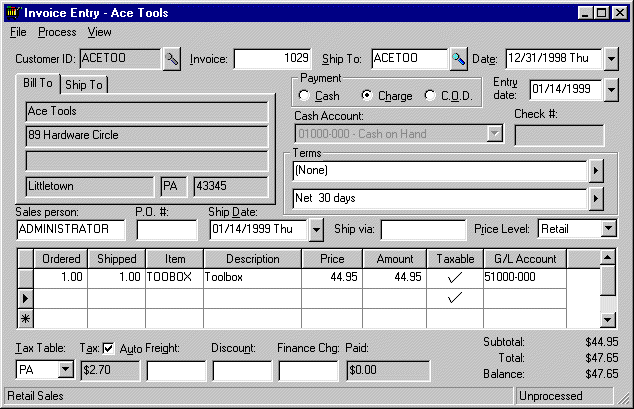
Enter an inventory item that is classified as No Count since a materials list cannot be inserted on an invoice detail line with an inventory item classified as Track Count. Open a materials list by right clicking on the row button and selecting Materials List. The materials list window should be empty since no components have been entered for this inventory item. Insert the inventory items that are comprised within the inventory unit that was entered within the main invoice. Sub-materials lists can be inserted as well but remember that materials lists cannot be inserted within inventory item that is classified as Track Count.
The pricing of the inventory unit can be set either 1) by the price entered within the main invoice screen or 2) by the total price of all the items entered within the materials list.
The materials list inventory items will be processed and totals will be updated the same way as the items listed on the main invoice screen. The difference is that materials list items are not printed on the invoice and the sales amount is processed and posted to the general ledger revenue accounts found within the materials list.