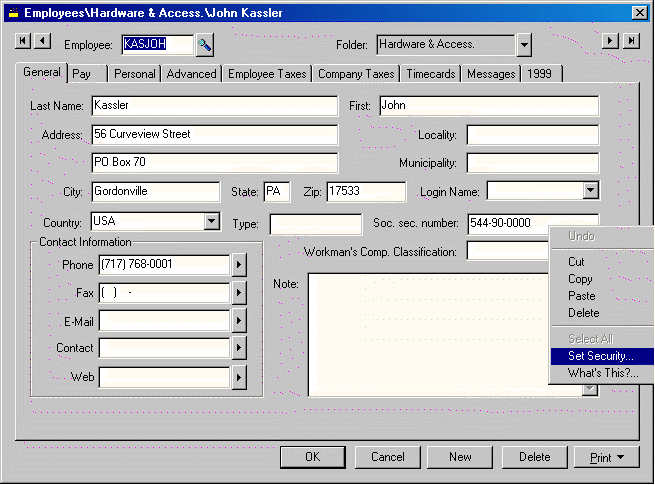
EBMS allows an administrator to change security within a data entry field within any window. This can be useful to determine if a specific user or users may change and/or view specific information. This feature can also be useful if specific fields are not to be used for the current implementation.
Open an employee record for an example of setting security settings. Go to Payroll > Employees and select an employee.
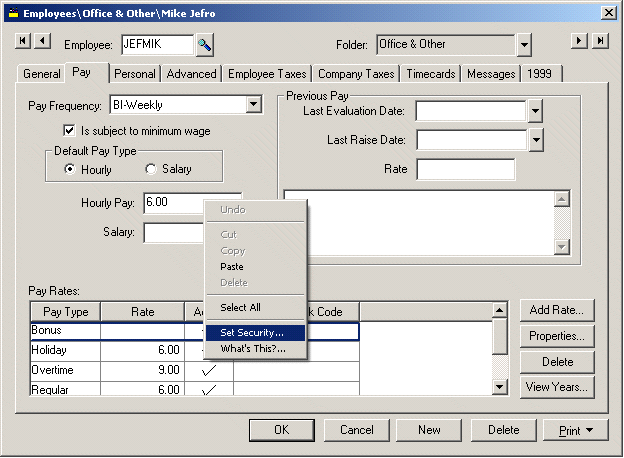
Right click on any entry field and select the Set Security option from the context menu as shown below.
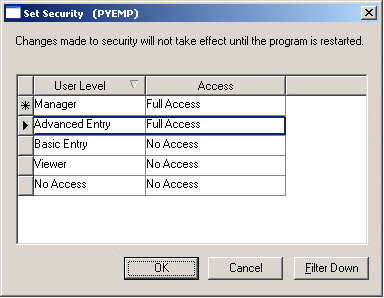
The following window will appear:
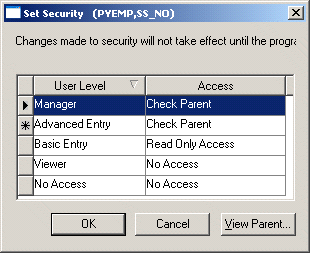
The Access level setting controls the permissions for each user level for the selected database file data. If the security Access level is set within a window and the same file information is displayed on another window the same security level applies.
The Access level of each User Level can be set to four different options:
This access option does not allow the user to view or change the information found within the current field.
Level allows the user to view but does not allow any changes to the information.
Gives the user maximum access to the information.
The setting for the specific field is set within the window. See the Setting Security Within a Window or Tab section for more details on setting security within a window.
Some information access levels also affect processes that are affected by the data so by restricting access to information may also restrict some processes.
All data entry security settings will not take effect until the program is restarted.
Screen Level Security Settings
A user can be barred from a screen or tab within EBMS by setting the security accordingly. Open a window such as the employee window as shown below:
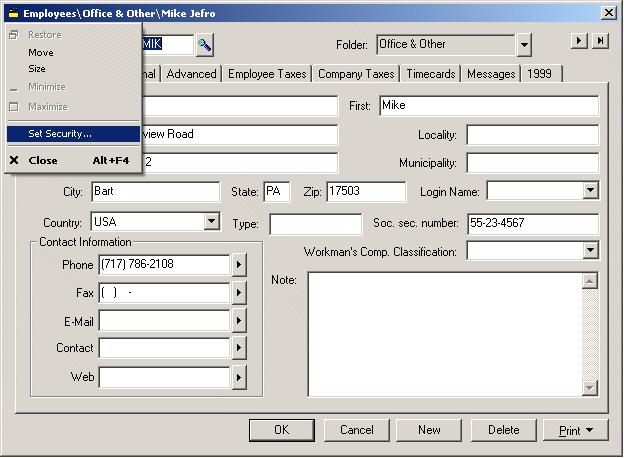
Click the icon located on the upper left corner of the window to open the window’s resize menu. Click on the Set Security option to open the following dialog:
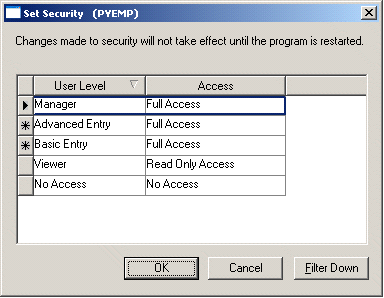
The Access security level can be set for each User Level. This restricts the user within the current screen to the Access level that is set for his user level defined in File > User Management.
The three User Level options are:
No Access
Prohibits the user from opening the selected window.
Read only
Allows the user to open the window but restricts them from changing any information.
Full Access
Gives user full access to information within the window. Note that the user may be restricted on some data entry fields or tabs based on other security settings or program restrictions.
A tab within a window can also be restricted based on user rights. Right click on the desired tab to view or change the security settings within the tab. Click Set Security to change the security options within a tab as shown below:
The security settings are similar to the window security settings as explained above.
New window and tab security settings will not take effect until the program is restarted.
Restricting Processes or Disabling Buttons
Disabling a button based on the user’s security rights can restrict a process or access. A button may be disabled by holding the <Ctrl> and <Shift> keys down simultaneously while left clicking on the process button with the mouse. The following security menu should appear:
Click on Set Security to set the Access security setting for each User Level set within File > User Management.
The User Level options are:
No Access
Disables the button that prohibits the buttons use.
Full Access
Enables the button.
Read only
Is not applicable for text button security settings.
Disabling buttons can be useful to restrict processes such as creating a new account, deleting an account, or opening advanced dialogs.
Several buttons such as OK or Cancel cannot be restricted.
Button security settings will not take effect until the program is restarted.